See below... worth a shot and it saved me doing loads of screen shot's too.... as stated only do below if your sure what to do. I would try this option first once you know the drive is showing on Computer Management window in my first post, 2. Gain Permissions to Access Denied USB Drive
Can you post the exact message your getting? also does the drive show in Computer Management window as in my first post
if so screenshot this too... it gives us a better idea on how to help you further if we can.
Good luck 
2. Gain Permissions to Access Denied USB Drive
If you don't have permission to access the protected USB or hard drive, you will not be able to open the drive and even get the "access denied" error message.
So, another choice is to gain permission for the inaccessible hard drive, USB, or file folders:
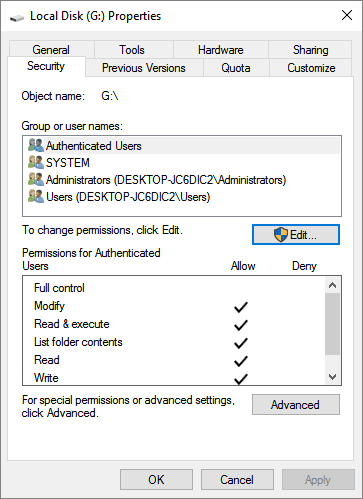
Step 1. Right-click the inaccessible hard drive, USB, or file folder, and select Properties.
Step 2. Go to Security, click Advanced and navigate to the Owner tab.
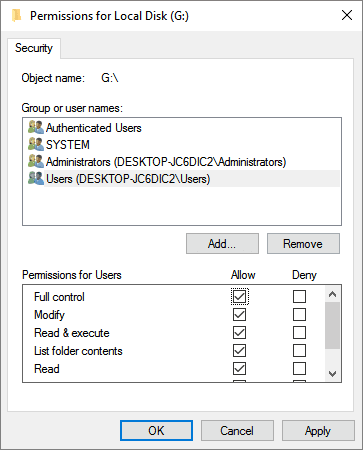
Step 3. Click on "Edit", and click your username under Group or username.
Step 4. Check all boxes in the Allow column and click OK, then click Apply to gain permissions to access your inaccessible device.
If you have important data, you can try to get all the problems fixed without losing any data;
3. Change Drive Letter to Access USB or Pen Drive
The drive letter is assigned to a USB or pen drive automatically, if the drive letter is incorrect, the hard drive may become inaccessible. In this case, you can change the drive to troubleshoot.
Step 1. Right-click the inaccessible device and select "Rename" > Enter a new drive letter for your inaccessible device to see whether you can open the device or not. If it doesn't work, continue with the below tips.
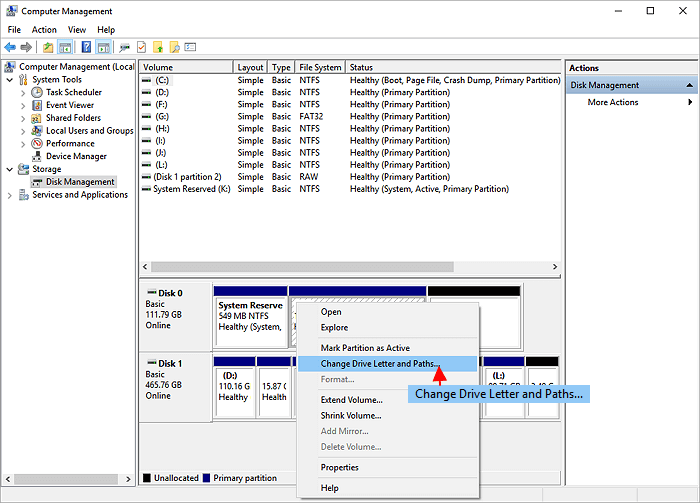
Step 2. Right-click "This PC/My Computer" > Select "Manage".
Step 3. Click "Disk Management". Right-click on the target disk partition and select "Change Drive Letter and Paths..."
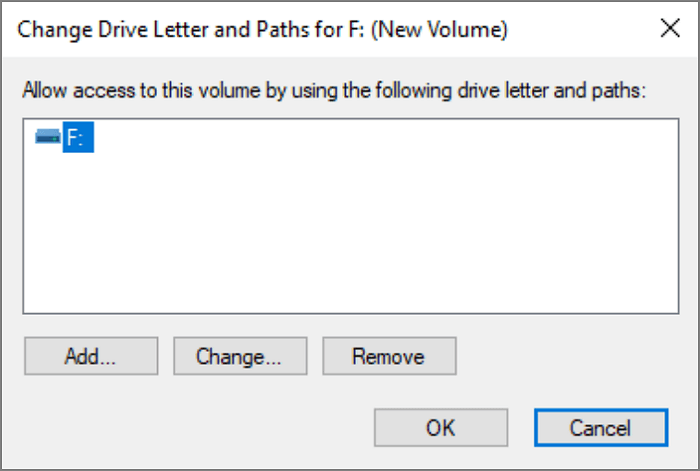
Step 3. On the Change Drive Letter windows, choose "Change" to modify the drive letter, then click "OK".
4. Edit Local Group Policy to Access USB/Pen Drive
If your USB flash drive, pen drive, or external hard drive is restricted by Windows Local Group Policy Editor, you may encounter an access denied issue. Here is how to adjust Windows Local Group Policy:
Step 1. Click the Search button and type in
gpedit.msc. Press Enter to open
"Local Group Policy Editor".
Step 2. Click "Administrative Templates" to expand the System folder.
Step 3. Click System and Open the "Removable Storage Access" folder.
Step 4. Double-click to open "Removable Disks: Deny execute access", "Removable Disks: Deny read access", and "Removable Disks: Deny write access".
Step 5. Click "Disabled > OK" to change Windows Local Group Policy to access your USB drive.
5. Run CHKDSK to Fix Access Denied in Command Prompt
The Command Prompt access denied error usually derives from insufficient privilege or write protection on the awaiting executing disk partition. For example,
Diskpart has encountered an error, access is denied".
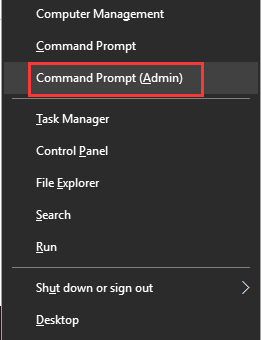
Step 1. Press Windows + X keys to bring up a black context menu.
Step 2. Choose Comand Prompt (Admin) to open the Command Prompt.
3. Type
chkdsk g: /f in the Command Prompt and press Enter. Change the drive letter of the USB drive and replace it with the correct one.




 £6 off ali express its a 99% chance its a dodgy memory card. it'll work fine up to its actual size but im fairly confident it'll never store 1TB properly.